 Pockode
Getting started
Install Pockode, open it on your phone and hand your first story to an agent.
1. Install an AI CLI
Pockode drives the Claude Code or Codex CLI on the same machine. Install one yourself, or start Pockode without one and install it from the app, under Settings → AI CLIs; that needs npm (Node.js) on the machine. A CLI that is not signed in yet is signed in from the same place.
2. Install and start Pockode
Run the commands above for your system. Start pockode in the directory of the project you want to work on, with a password of your choosing. Generate a long one; on a machine shared with other users, Security says how to keep it out of the process list.
Pockode prints where to reach it:
    ◆  P O C K O D E
    ▸ Local  http://localhost:9870
    ▸ Remote https://<your address>.cloud.pockode.com
    ▸ Agents claude  codex
The Agents line says which CLIs it found. If one says (not found), see Troubleshooting.
3. Open it on your phone
Scan the QR code under the banner and enter your password. The phone reaches your machine through an outbound tunnel to the relay, so there is no port to forward. The address is kept in the project’s .pockode directory and stays the same across restarts.
To stay off the relay, start with -relay=false and open http://<your machine's IP>:9870 from a phone on the same network. That connection is plain HTTP; read Security first.
4. Run your first story
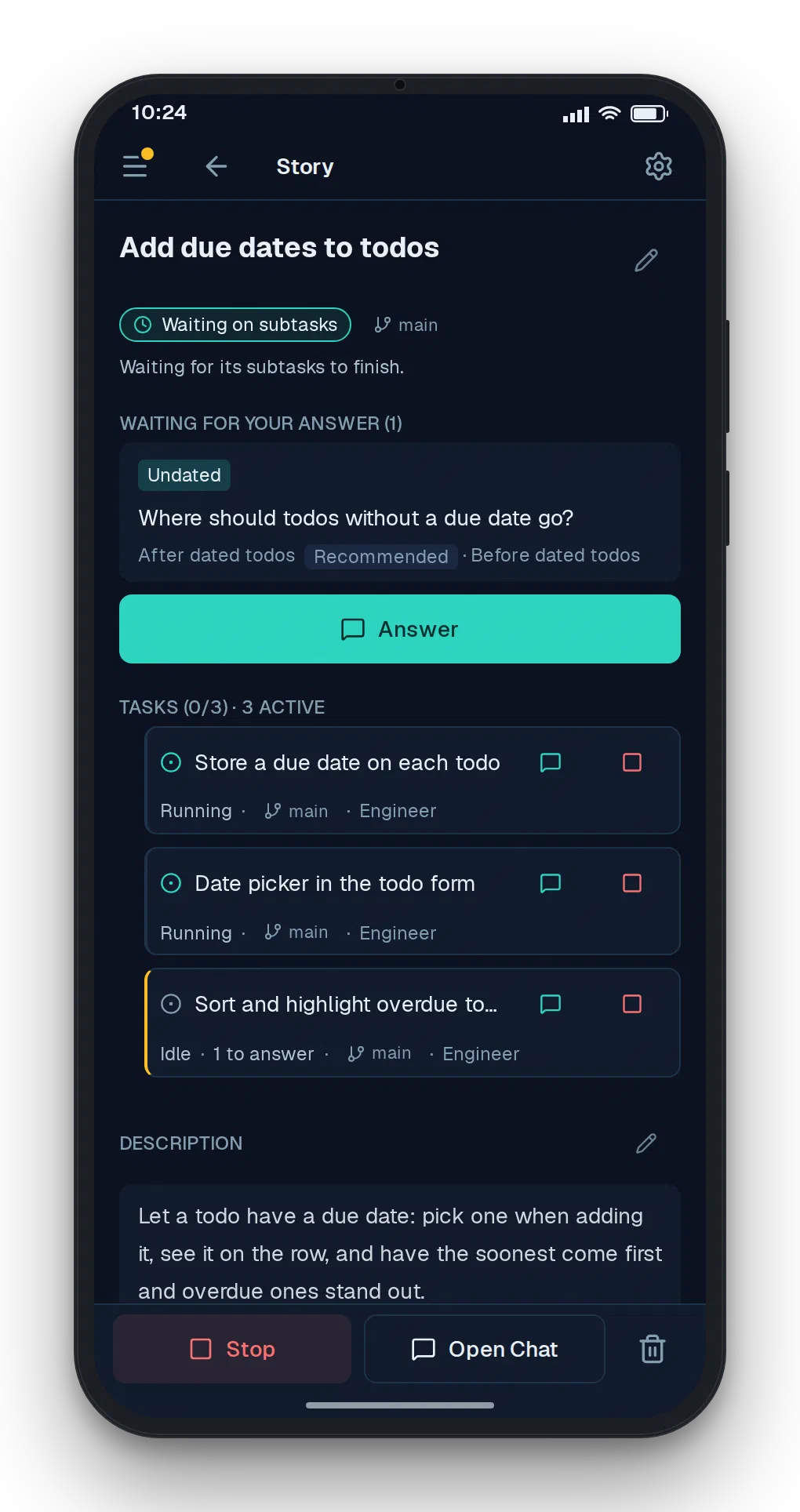
- In the sidebar, open the Project tab, then Project.
- Tap New Story, give it a title, keep the PM role, and tap Create.
- Open the story, add a Description of what you want, and tap Start.
The PM agent splits the story into tasks and starts an agent for each one. When an agent needs a decision, the story shows up under Needs you; answer it and the work carries on. The built-in PM commits the result in its last step; the diff and the history are in the Git panel.
Next: Stories and agent roles.